|
||||
| ||||


Main Menu |
||||||||
|
|
||||||||
Contact |
||||||||
|
|
||||||||
UPLOAD FILE(S) to DropBox
To log onto the DayCom Server site and upload (put) file(s):
- Open your browser (Internet Explorer in most cases - will also work with Safari, FireFox and Opera)
- go to: DayCom.HPShare.net [do not enter a "www" or anything - just as you see it - or click on it if links are enabled in your browser].
- NOTE: Type the above URL in - you may get an invalid certificate notification - just click through (ignore) the certificate - it's ok.
- Click the "Log On" button (in the upper right corner)
- In the "DayCom Server Website" Remote Access window, logon using:
- username=dropbox
- password=********** [note the CASE, the password is CASE SENSITIVE]
- Click "Log On" button
- Click on the 'Shared Folders' on the LEFT side near top
- Click on 'dropbox" folder
- If there is a special sub-folder designated for your activity, such as LMM or RRVTA, then click on that folder to open it up. Otherwise, continue with the next step, below.
- Click the Upload Button (Up Arrow) as shown below
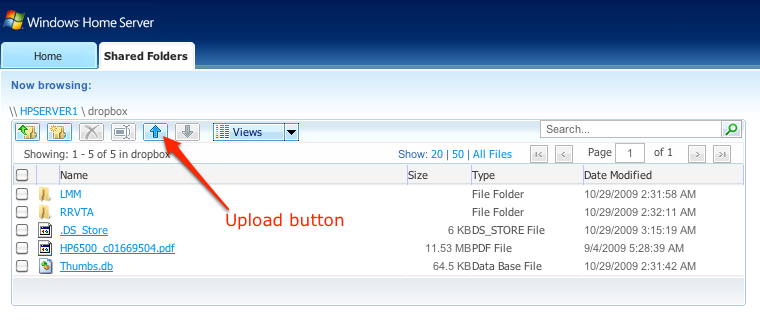
- The 'Upload files' dialog window will appear
- Click on the Choose File button -
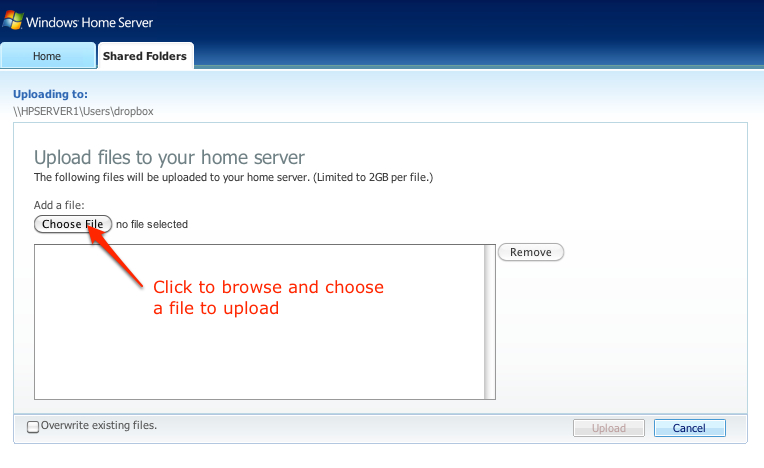
- A browse window will appear - Browse to the FILE you want to upload - Click "OK"
- The file you chose will be shown in the file list box.
- REPEAT the Choose File operation if you want to upload more than one file - each file you choose will appear in the file box list.
- When all the file(s) you wish to upload have been selected, CLICK the Upload button.
- It's done. It will take some time, depending upon how many and how large the files are.
- You will then see the uploaded file(s) in the 'dropbox' file view window.
- When you have completed upload(s), click "Log Off" button in far upper right corner.
Did you find a problem with these instructions? Email Support: support@daycomsolutions.com
DOWNLOAD FILE(S) from DropBox
To log onto the DayCom Server site and get (download) file(s):
- Open your browser (Internet Explorer in most cases)
- go to: DayCom.HPShare.net [do not enter a "www" or anything - just as you see it - or click on the link, if links are enabled in your browser].
- NOTE: Type the above URL in - you may get an invalid certificate notification - just click through (ignore) the certificate - it's ok.
- Click the "Log On" button (in the upper right corner)
- In the "DayCom Server Website" Remote Access window, logon using:
- username=dropbox
- password=********** [note the CASE, the password is CASE SENSITIVE]
- Click "Log On" button
- Click on the 'Shared Folders' on the LEFT side near top
- Click on 'dropbox" folder
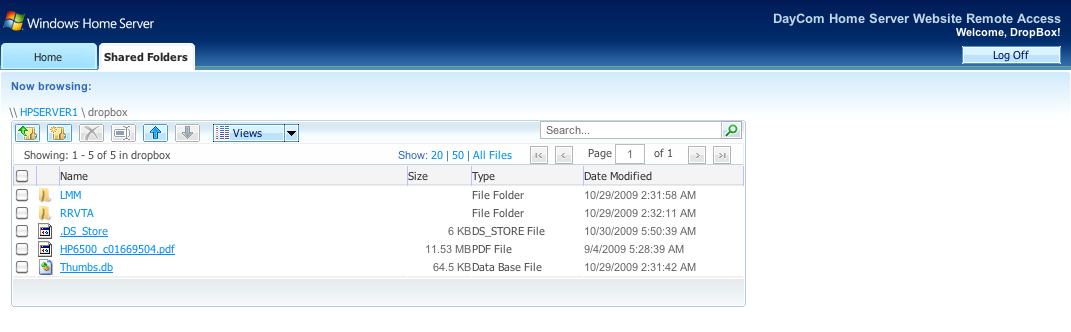
- If the files you want to download are in a subfolder, double click on that subfolder to open it (ONLY CLICK ONCE or you will select the entire folder for DOWNLOAD!)
- Click on the Checkbox for the FILE(s) you want to GET (download)
- Click the DOWN ARROW near on top bar to 'Download"
- A "File Download" window will pop up - click "Save" (this window is part of your windows system)
- NOTE: the type of download window and options you will receive various from browser to browser - you may not get all the opitons listed below - if you select more than one file, you should get the following:
- Select EITHER .exe file of .zip file format - EITHER ONE SHOULD WORK
- Click - Navigate to where you want to Save the file - select a folder
- Click OK - you will have to wait while it prepares the file(s) for download
- BROWSE to where you want the file(s) saved
- Click OK
- It's done. It will take a second for the file to download.
- When you have completed download(s), click "Log Off" button in upper right corner.
NOTE: If you downloaded multiple files you with either have to run the EXE file or UN-Zip the ZIP file, depending upon whic option you selected.
Did you find a problem with these instructions? Email Support: support@daycomsolutions.com
| Home | Software Development | Web Development | Web Process | Experience | Web Site Links |
| Support Area |
Copyright ©DayComSolutions.com 2005-2012 All Rights Reserved |